CaptureMate HD
Mac capture software for film transfer equipment
and high-quality uncompressed HD capture.
Description
CaptureMate HD captures standard QuickTime Movie files; during a capture session, each time the mouse is clicked or the space bar is pressed, a frame is captured to the movie file. There is also an option to capture real-time video at full frame rate. CaptureMate HD is extremely robust and efficient, with very low latency between mouse clicks and frame captures. Video is captured uncompressed and in full resolution, for maximum quality.
CaptureMate HD is designed to work with the "WorkPrinter" film transfer equipment manufactured by MovieStuff, but it can be used with other film transfer devices, or for stop-motion animation. CaptureMate HD works with any Mac-compatible video input source. If using a WorkPrinter device, you will need a camera with 12x optical zoom. CaptureMate HD works with the following devices:
- Any Blackmagic device for analog, SDI or HDMI input.
- Standard-definition DV camcorders
- "UVC" USB cameras
- "IIDC" FireWire cameras
- Built-in Apple iSight / Facetime cameras
- Any USB analog input device supported by the VideoGlide driver
How to use CaptureMate HD
Connect your camera and launch CaptureMate HD. You should see a window with a live video preview from your camera, like this:
 If you have multiple video input devices connected to your computer, you can choose the one you want to use from the Preferences window, which you access from the CaptureMate HD menu: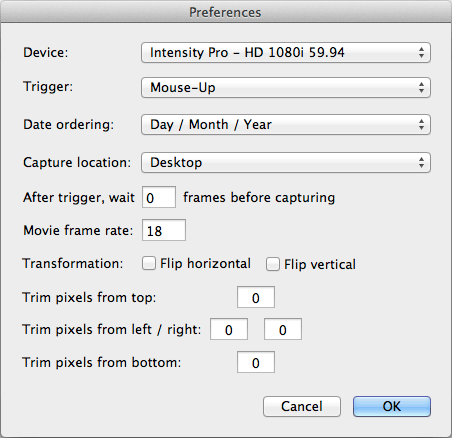
Other settings are as follows:
Trigger
You can choose to capture frames in response to a Mouse-Up or Mouse-Down trigger, or at full rate. The WorkPrinter devices use a Mouse-Up trigger.
Date ordering
Choose your preferred date ordering - this is used when generating file names for the captured Movie files.
Capture location
This setting allows you to choose where captured files will be stored.
After trigger, wait x seconds
You can use this setting to synchronise frame captures with mouse clicks from the film transfer machine, if frames are being captured too early.
Movie frame rate
Here you specify the frame rate that you want encoded in the movie for playback. Generally you will want to use the frame rate at which the original film footage was recorded.
Synchronisation of the WorkPrinter with CaptureMate HD
If you are using a WorkPrinter device, it is vital to make sure that the device is properly synchronised with CaptureMate HD in order to avoid frames being captured while the film is still moving.
Firstly, you should try to achieve this by using the "timing cam" adjustment on the WorkPrinter device itself. Do a test capture and turn the timing cam until you get perfect frame captures. If you find that you cannot introduce enough delay using the timing cam alone, use the delay option in the Preferences (described above).Capturing
When you click the "Start" button, CaptureMate HD will enter capture mode, displaying a progress window that shows the number of frames captured as well as a preview of the frames that are being captured. In this mode, frames are captured in response to mouse clicks in this window. Make sure the mouse cursor is positioned over this window and start the WorkPrinter. After the capture is complete press the escape key to exit from capture mode.
For important capture sessions, it's a good idea to quit all other applications when using CaptureMate HD, for the best possible performance reliability.